← Guides
See your week and your month.
Step back from today. Week puts seven days side by side, and Month shows how full each day is. Both come with Pro.
2 min · For Horizon Watcher, Collector
- 1
Switch the view
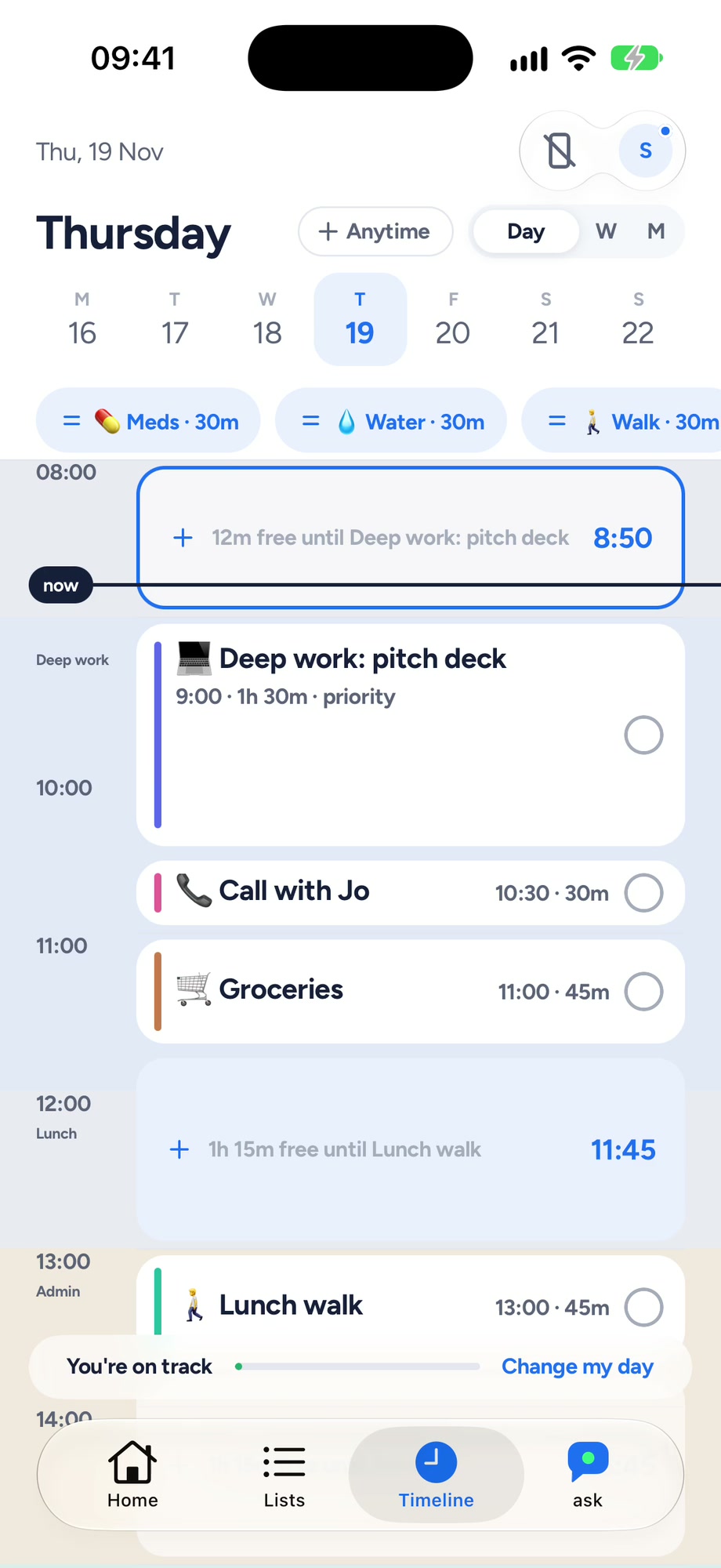
On the Timeline, the switch at the top right reads Day, W, M. Tap W for Week or M for Month. Both are Pro. On Lite, a tap shows you what they do.
- 2
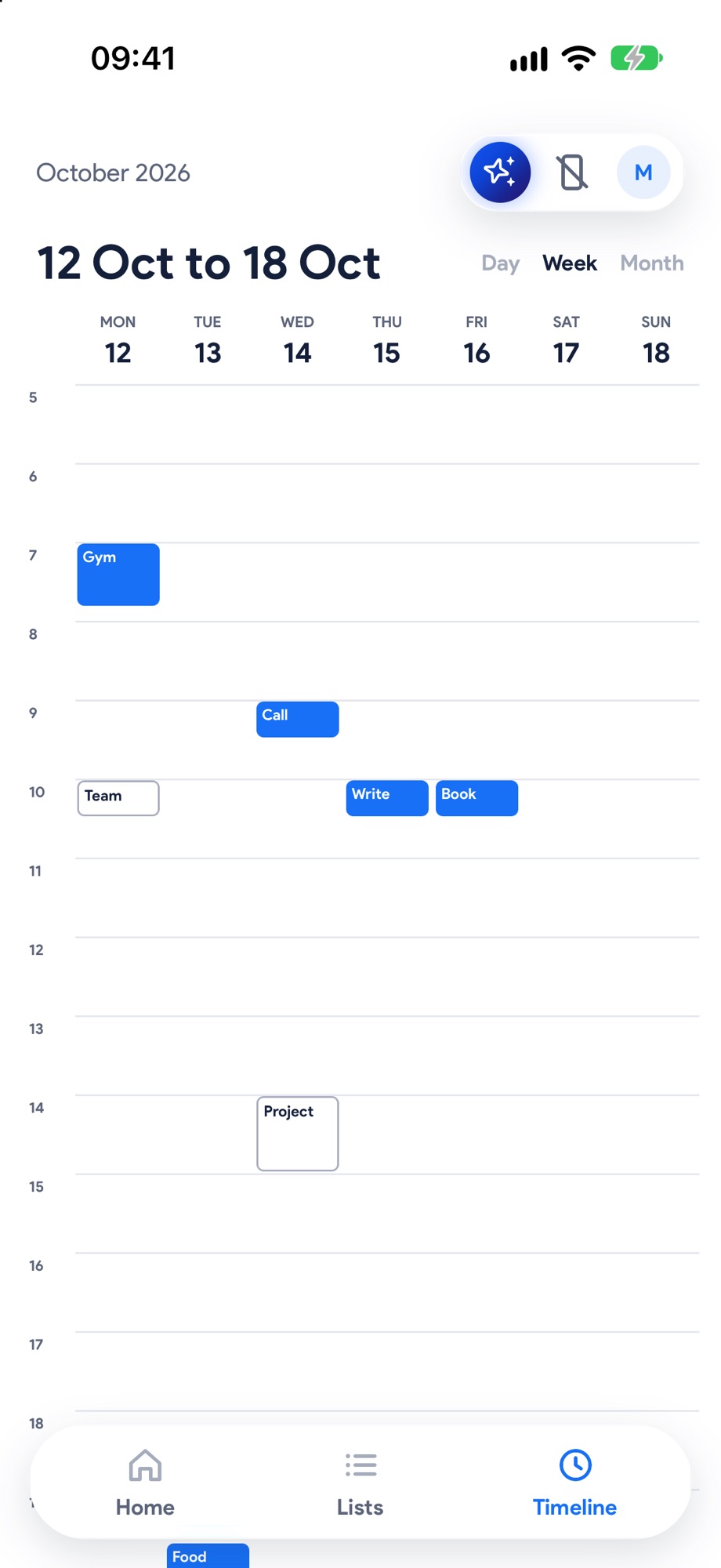
Week: seven days side by side
Each day is a column, with your tasks and calendar events as small blocks. Tap a block to open it. Tap a day's name at the top to open that day.
- 3
Move things between days
Hold a block and drag it to another day or another time. Tasks with no time yet sit behind the Anytime pill at the top. Tap it, then hold one and drag it onto a day.
Screenshot to comeMove things between days - 4
Month: how full each day is
Each day shows its load as small bars: Done, Planned, Calendar, Locked and Routine. Tap a day to open it.
Screenshot to comeMonth: how full each day is